Lesson 3
Finishing the Clown
Finishing up with the last few pieces for the clown.
The Actual Alarm
Now let’s open our Alarm 0 Event by double clicking Alarm 0 in the same way we did the Create Event.
This is the code that will run when the clown movement alarm countdown has finished. We’ve already decided that our goal is to move to a random position in the room, and that we want the action to repeat every second.
Let’s put the code into the event:
x = random(room_width);
y = random(room_height);
alarm[0] = game_get_speed(gamespeed_fps);
The x and y variables are the position the object is at, so we want to change them in order to move the instance (there are a number of ways of moving an instance, but they all boil
down to changing x and y behind the scenes, we are just doing it manually here).
random() is another built-in GM function (middle click it to read the manual entry, always). It returns a real number between 0 and the argument we give it (which needs to be a number).
room_width and room_height are built-in GM variables that hold the current width and height of your room (and rooms span from 0 to the width or height, depending on the axis you are
interested in).
So putting all that together, we have x being set to a random value between 0 and room_width, and the same for y except substituting in room_height instead.
Our clown can now teleport!
Finally, we put the exact same code in as we did in the Create Event to set the alarm to fire in 1 second again. Once alarms fire, they don’t automatically repeat, so if we want them to repeat we have to set them again when they fire.
Scoring points
Now let’s move on to the Left Pressed Event.
The Left Pressed Event specifically fires when the user presses the left mouse button while the mouse’s position is within the collision mask of the instance (or if they tap the screen within the collision mask, on mobile).
We’ll focus more on collisions in the upcoming “Let’s Make Pong” lesson, but for a quick explainer right now: The collision mask is a defined area of an instance that deals with automatically handled collisions. By default it is a rectangular region that includes ALL non-transparent pixels in your sprite. So it will be a rectangle around our clown instance that our clown sprite fits snugly into in this case.
When the user interacts with that region via the mouse or their finger, we want the score to increase, and we want the clown to teleport.
global.points = global.points + 1;
x = random(room_width);
y = random(room_height);
Ok, we’ve seen the x and y assignments just before so we know what that does, but where did global.points come from? Well, that is a variable we have to create.
We’ll do that in a script, which is another type of asset, like a sprite, or an object. We want it in a script for two reasons:
- It’s good to define global variables at the very start of the game, since they are by definition supposed to be global, and creating them later means they aren’t really behaving like global variables. Since the code inside a script is run before everything else, it makes a script a natural place to define global variables, and any other “initialisation” type code you might want.
- We might not want the points to reset every time an instance of the clown is created, so defining the variable in the Create Event of the clown (while it might seem natural to do so) isn’t a good idea in that case. This doesn’t practically matter in this particular game because of the way it plays, but it’s still a good habit to get into.
I very often see beginners wonder why their global points/lives/inventory/etc variables get reset, and it’s almost always because they are defining them in the Create Event of something that will be destroyed and recreated repeatedly throughout their game.
Defining them in scripts is almost always the solution to that class of problem, because scripts only get executed once, at the very start of the game.
Following the script
So right click on your Asset Browser, select Create > Script. A totally new code window should pop up:
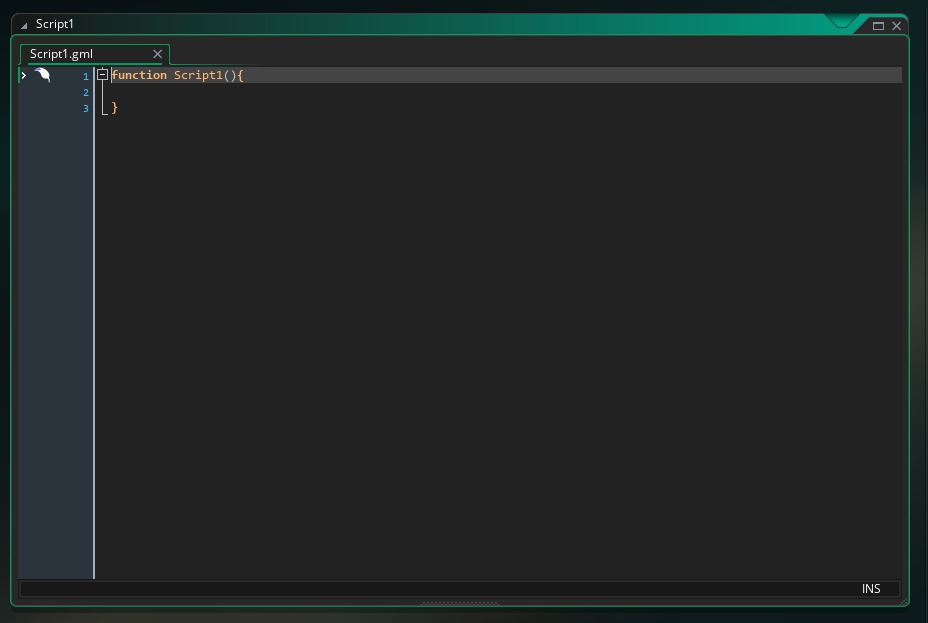
It’s got a random function already declared: function Script1() {}, but we don’t need that so we can just delete all that code, leaving us with a totally empty editor. After that, we
want to define our global variable:
global.points = 0;Excellent, now global.points gets defined at the very start of the game, and since it’s global, we can access it from anywhere including our clown object. But wait a minute, let’s think
about the actual game for a minute.
It might be nice to have a high score, so that users have a way to measure their skill against their past self, something like max_points. Let’s define that alongside our global.points
variable.
global.points = 0;
global.max_points = 0;
Awesome, now when the game ends, we can compare global.points to global.max_points, and if global.points is bigger, we know the user has beaten their previous high score (or is
playing for the first time and managed to score at least one measly point).
The last thing we’ll do here is name our script appropriately.
Right click on the script asset (it should be called Script1) on the Asset Browser on the right-hand side of the screen. In the context menu select Rename. Call it something
like scr_init, since it’s a script (scr_) asset that is doing some initialisation work. Press enter and you’re all done.
Speaking of game ending
We still have to add the code for our “game end timer” (alarm[1]), so let’s get that done now.
Open your Alarm 1 Event. It should be blank (if not, maybe you’ve opened the Alarm 0 Event). Enter this code:
room_goto(rm_game_over);Pretty simple, and the names make it fairly obvious. room_goto() is a built-in GM function which takes us to the room provided as the argument (middle click > read the manual entry).
We haven’t created rm_game_over yet, so we’ll still need to do that later, but first let’s complete the remaining code for the clown object.
Drawn and quartered
We have one final thing to do with the clown: draw the points and the timer for the UI.
In more complicated games, we’d likely set up a specific UI object, but since this game is so simple it’s not worth the effort, so we’ll just do it all in the clown object.
And specifically, we’ll draw our UI in the Draw GUI Event.
In GM, there are two main Events that you will run drawing code in: the Draw Event and the Draw GUI Event.
There are a number of ways the two events differ, but the most important ones are that the Draw GUI Event works in a different coordinate space than the Draw Event, it can target a different resolution than the Draw Event and the Draw GUI Event is always drawn on top of anything in the Draw Event.
The Draw Event is probably what you consider the “natural” coordinate space. It’s the space that exists in the room. It’s the coordinate system that instances use when they automatically draw their assigned sprites. And most importantly, this coordinate system shifts as you move the camera around (more on cameras in future tutorials).
Imagine you are playing a top-down RPG, and there’s a quest giver standing around. As you move around, the position the quest-giver is drawn at on the screen shifts relative to your movements. This feels completely natural because you intuitively understand “the camera is following my player, and everything else is going to shift around the screen as the camera moves.”
The Draw GUI Event doesn’t work like that. Instead, its coordinates are fixed on a screen. So if you draw the same quest-giver at the same coordinates as you did in the Draw Event but in the Draw GUI Event instead, then the quest-giver would be stuck in the same position as you moved around. If you think about it, this makes sense. You don’t want your health bar “stuck” to a position in the actual game world, drifting off-camera as you move. You want it to remain fixed on the screen.
The resolution differences are more complicated to explain, but suffice it to say the ability to target different resolutions for your game world and GUI space allows you to do things like make a big chunky pixel art game, that has a super smooth and high resolution interface.
So open your Draw GUI Event now and input this code:
draw_set_color(c_white);
draw_set_font(fnt_gui);
draw_set_halign(fa_center);
draw_set_valign(fa_bottom);

var _str_score = "Score " + string(global.points) + " (High score " + string(global.max_points) + ")";
draw_text(display_get_gui_width() * 0.5, display_get_gui_height() - 5, _str_score);

draw_set_valign(fa_top);

var _str_goal = "Get as many points as you can before the timer runs out\nTime left " + string(alarm[1] div game_get_speed(gamespeed_fps));
draw_text_ext(display_get_gui_width() * 0.5, 5, _str_goal, -1, display_get_gui_width());
Whoa, that’s way more code than we’ve had to put in any events so far, but it’s all fairly simple if you look at it line by line. A lot of code is pretty readable even if you’re a beginner.
We start with a bunch of draw_set_*() functions. These are all built-in GM functions (again, our constant refrain, middle click these and read the manual entries for them,
the more you do this, the quicker you’ll start remembering functions and what GM can do, instead of simply copying).
Each of these sets a different quality for the text we want to draw.
We want the colour to be white, so we use the colour constant c_white (typing c_ should pop up with an autocomplete box of all the colour constants that are available in GM, but
you’re not limited to only those colours).
We want a specific font for our score, so we set that (we haven’t actually created the font asset yet, we’ll do so in a moment).
We want our text to be horizontally centered on the x position we’ll draw it and vertically aligned so the bottom of the text sits directly on the y position we’ll draw it.
Then, we build a string.
var _str_score = "Score " + string(global.points) + " (High score " + string(global.max_points) + ")";This is a fairly long and complicated piece of code compared to what we’ve looked at so far. We can see that we’re creating a local variable called _str_score (meant to represent
“string score”) and assigning it to the string "Score " and then we are adding the global.points variable we created, but since global.points is a number, not a string, we must
first convert it to a string using the built-in function string() (middle click > manual).
Then we add " (High score " to that and we add the string version of the global.max_points variable we created, and finally we add ")".
Altogether, in-game, this will look like "Score 10 (High score 20)" (depending on our points and max points, obviously).
Then we draw the text with
draw_text(display_get_gui_width() * 0.5, display_get_gui_height() - 5, _str_score);draw_text() is another built-in GM function (what do we do at this point again? read the manual entry for it). It takes three arguments: the x position the text will be drawn at,
the y position the text will be drawn at, and then the actual string we want to draw.
Let’s look at each argument we are providing one by one.
The first argument is the x coordinate: display_get_gui_width() * 0.5.
Remember how I said that Draw GUI Event uses a different resolution than the normal part of the game? Well display_get_gui_width() returns the width of that resolution.
So something drawn at an x coordinate of 0 will be drawn on the far-left side of the game window, and something drawn at an x coordinate of display_get_gui_width() will be drawn
on the far-right side of the game window.
We want our text centered on the x-axis, so we take display_get_gui_width() and multiply it by 0.5 (and since we set our text’s horizontal alignment to centered via
draw_set_halign(fa_center) the text will be perfectly horizontally centered on that coordinate).
The second argument is the y coordinate: display_get_gui_height() - 5.
This is essentially the same as the x coordinate argument except we aren’t halving it (if we did so, the text would be drawn in the exact center of the game window, which might be a
bit distracting).
Instead, we draw it 5 pixels above the very bottom of the screen. And since we set draw_set_valign(fa_bottom) that means the very bottom of our text will be 5 pixels up from the bottom
of the game window.
The final argument is simply the local _str_score string we built previously, which is the text we want drawn.
That’s our points drawn! Next up is drawing our timer (and some instructions).
We set draw_set_valign(fa_top) because we’ll be drawing our instructions + timer at the top of the screen, 5 pixels down so that it mirrors the points being drawn on the opposite side
of the game window.
We create another local variable called _str_goal (I picked that name as shorthand for string goal) and assign it to the "Get as many points as you can before the timer runs out\nTime left " string.
You’ll notice a funny little \n in that string. This is called an escape character (search the manual for them) and it allows us to insert a new line into a string.
If you just pressed enter to try to create a new line, you’d cause a compiler error (strings must stay as a single line, in most circumstances).
After that we add string(alarm[1] div game_get_speed(gamespeed_fps)) to it. We’re doing another string() call obviously, but what’s going on with the argument we are providing for
that string() call?
Well, we’re getting the value of alarm[1] (which holds how many frames are left on our game end alarm), and then we are using the keyword div. div means “divide by and drop the
remainder”.
We could use a simple / to divide, but that would mean we’d have decimals on our countdown, which I think is kinda ugly. Better to have a simple “10, 9, 8” style countdown.
So we are dividing the amount of time our alarm still has to run by the game speed the game is running at (60fps by default) and then we are dropping the remainder off that calculation.
Originally, we set our game end timer to game_get_speed(gamespeed_fps) * 20 (which would be 1200 frames). That means 1200 / 60 = 20, or the number of seconds we have left on our timer,
in other words.
Essentially, we are converting the frame count our alarm runs on into human seconds.
And that’s that, we’re finished with our clown object. We’ve still got a number of things to do before we can run the game, but give yourself a pat on the back, it’s taken effort to get to this point!