Lesson 2
Getting the Project Ready
Create the project and make the first few assets.
In the beginning…
The game dev said let there be a project. So let’s get our project set up.
First, we want to create a new project. We’ve already gone over this in the “Your First Hour with GM” course, so as a quick refresher: Open GM, click New on the Welcome Page, decide on the name of your Click the Clown game and make sure it’s saving to a sensible place. Then click Let’s Go!
Now we’ve got our project created, let’s create our clown sprite first. Again, we’ve gone over this in “Your First Hour with GM”, so very quickly: Right click on the Asset Browser and select Create > Sprite. Click Edit Image on the Sprite window that pops up, and draw your clown. Here’s mine:
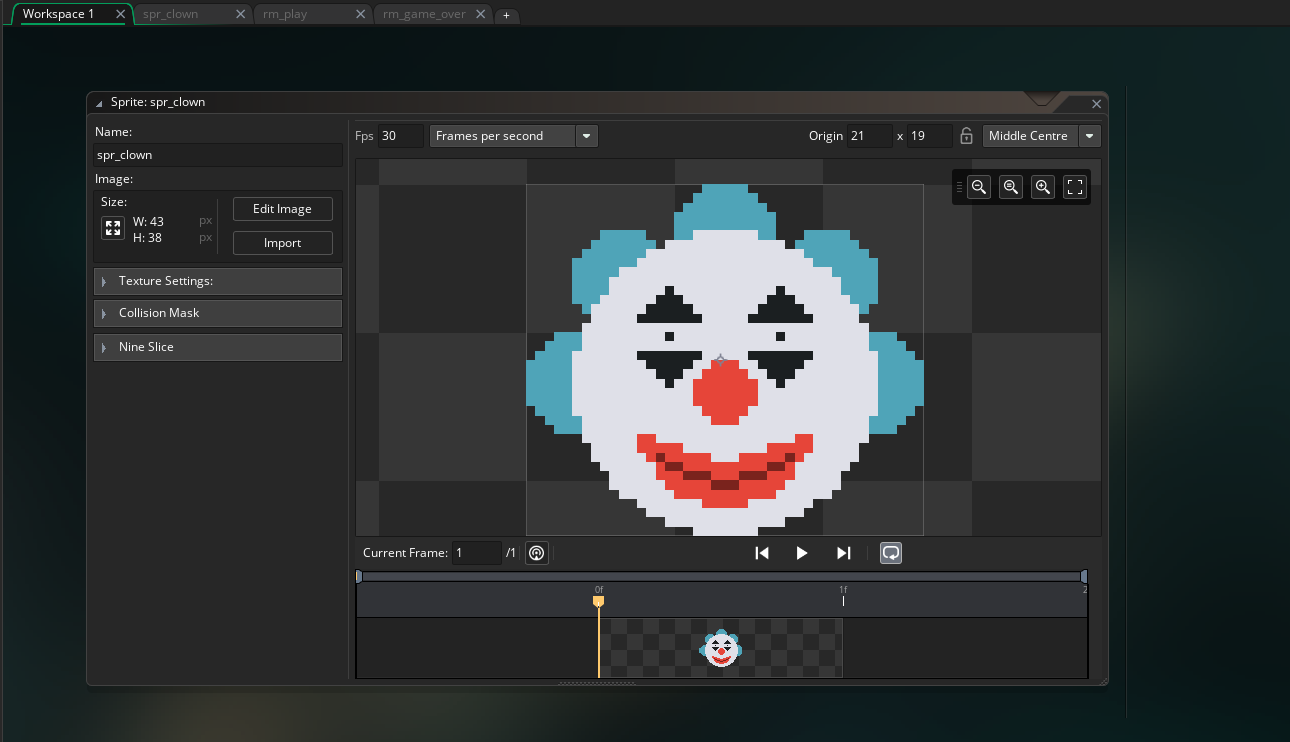
After that, click back to your Sprite window (double click on the sprite asset on the Asset Browser on the right or click on the “Workspace 1” tab at the top of the editing window) and name
your sprite appropriately (spr_clown for example).
Now we want to create the clown object. So right click on the Asset Browser again and select Create > Object. Name the object appropriately (I chose obj_clown) and click on the
sprite selection dropdown menu:
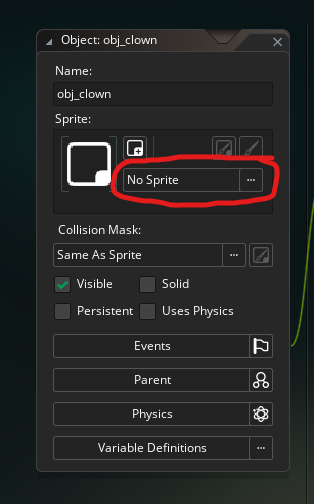
Find your clown sprite (it should be immediately visible) and click on it to assign it to your clown object.
Ok, we’ve got our project created, our clown sprite made, and the clown object exists. Let’s start to give the clown some actual behaviour!
Making the events
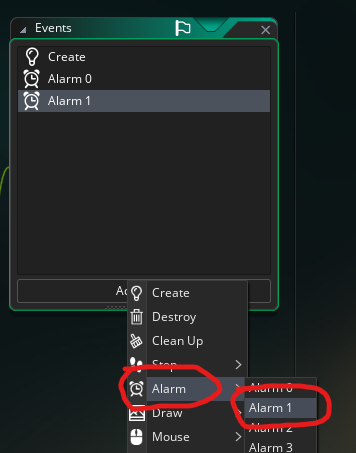
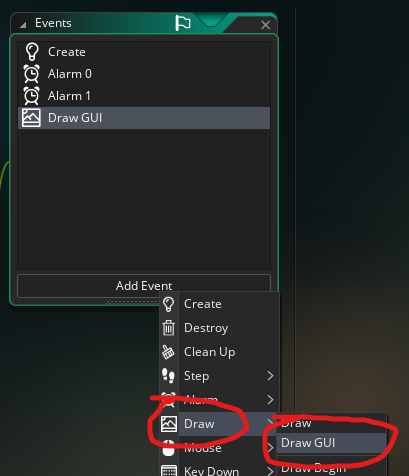
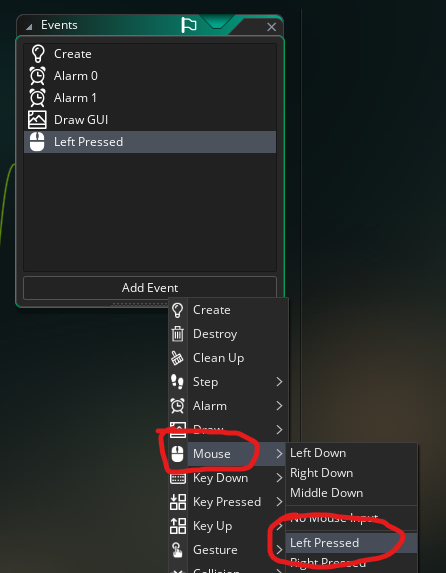
To start off with, we want to give the clown object five events: Create, Alarm 0, Alarm 1, Left Pressed and Draw GUI:
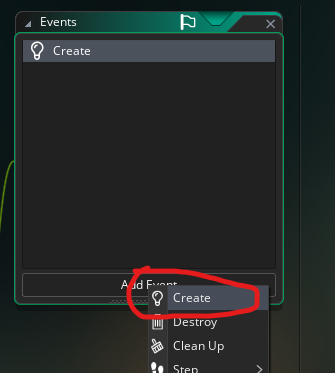
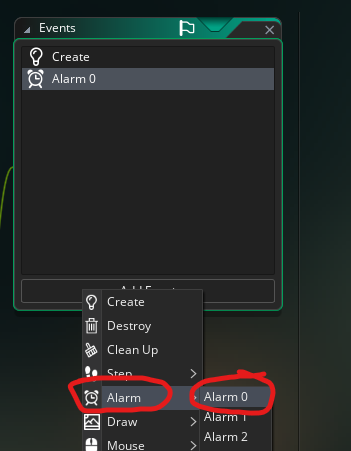
The overall goal we have for our clown is this:
Every second it moves to a randomly selected new position within the room. If you click on it, you get a point (and it moves to a new position as well). After 20 seconds the game ends and we change rooms to the game over screen (where we’ll display points and the like).
It’s always good to clearly outline the goals you have when you are making something. When you have a “large” goal (with a lot of moving pieces, so to speak), it’s best to break it down into a number of sub-goals.
In fact, in programming, we almost always try to break a goal down into the smallest possible components that make up the goal, and implement those components one by one. By breaking a goal down into the smallest possible pieces, we’ll often find hidden assumptions in our goal that we didn’t even realise were there, which then helps to strengthen our direction in the implementation of the goal. On top of that implementing very small components one after the other is much easier than trying to implement one big idea in a single shot.
You’ll frequently find that a large goal which feels impossible as one big chunk becomes surprisingly possible once you start considering the smallest possible step-by-step version of the goal.
An Alarming Explanation
Since we want our clown to move every second, and we want the game to end after 20 seconds, we need some timers. The simplest built-in timers in GM are the Alarms, so we’re going to use alarms for the timing.
We haven’t used alarms yet, so let’s learn a little about them first.
There are 12 built-in alarms that GM gives you access to. They let you set timers for code to trigger, so things like “Move every second” or “Reload your gun after 2 seconds”.
You should be aware that alarms are not special in any sense. We can easily build an alarm ourselves by setting a variable to some number in the Create Event (or anywhere that doesn’t trigger every frame) and subtracting 1 from that variable in the Step Event, with an if statement triggering some code when the variable’s value hits 0.
Alarms are exactly that, just with less setup than we have to do manually.
So when we set an alarm, we are essentially setting a variable to some number, and then GM automatically subtracts 1 from the variable every frame. When the value of the variable hits 0, GM will run the code in the Alarm Event, and then it will subtract 1 once more so the final value is -1. This is considered the “resting” state. If it stayed at 0, it would continue to fire every frame.
Alarms are based on frames, or “steps”, so if you wanted an alarm to last for 1 second, and your game was set to 60 fps (the default), you would set the alarm to 60, not 1.
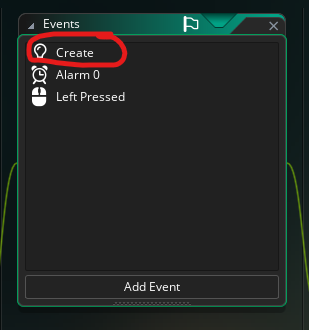
Open the Create Event for your clown object by double clicking on the Create entry on the Events window.
And input the code:
// Clown teleport timer
alarm[0] = game_get_speed(gamespeed_fps);
// Game end timer
alarm[1] = game_get_speed(gamespeed_fps) * 20;You might notice that we’ve got some random text beginning with //. These are comments, and they are completely ignored by the program, but they are useful for us programmers to keep
track of why something is the way it is, or what it’s trying to do, etc. Essentially just little notes you can leave yourself so that when you look at the code again a week or a month
later, you can hopefully understand what in the world you were thinking at the time. Maybe. If you’re lucky.
So what does the non-comment portion of the code do?
Well, alarm is an array (which we’ll touch on more in Fundamentals of Code II), with an array being a special type of variable. You can think of it as a list, like a shopping list with
numbered entries and each numbered entry is a little variable we can store things in.
Computers almost always count from 0, so the first “entry” in the shopping list is considered 0, the second 1, etc. The square brackets [] are just special programming symbols to let
the computer know you are trying to access a position in the array.
Since we know that GM gives us access to 12 alarms, we can surmise that alarm[0], alarm[1], alarm[2] all the way up to alarm[11] are available for us to read and write to. In other words,
the alarm is a little shopping list, with entries from 0 to 11, and each entry is a little variable holding the amount of time left for that alarm entry.
So we are setting the first entry in our alarm array to game_get_speed(gamespeed_fps). This is a built-in GM function, and I encourage you to middle click on it and read the manual entry
for it. You should always do this whenever you encounter a new built-in function or built-in variable (in fact, try middle clicking on alarm as well).
Essentially, game_get_speed() returns the framerate your game is running at. The argument we supply determines whether we get the answer back in frames (gamespeed_fps) or microseconds
(gamespeed_microseconds).
So our line of code will set alarm[0] to 60 if your game is running at 60fps, which equates to a second between the alarm being set and its code being run. This is our timer for when
the clown will move.
Then we do the same for the second entry in the alarm array: alarm[1], except this time, we multiply the game speed by 20. If 60 frames is equivalent to 1 second, then 60 frames * 20 is
equivalent to 20 seconds. This is our timer for when the game ends.