Lesson 6
Running Your Game
Learn how to run your game, and then alter its behaviour a bit.
Getting it running
It’s time to see the game in action!
In order to get the game running, we want to click the Play button:
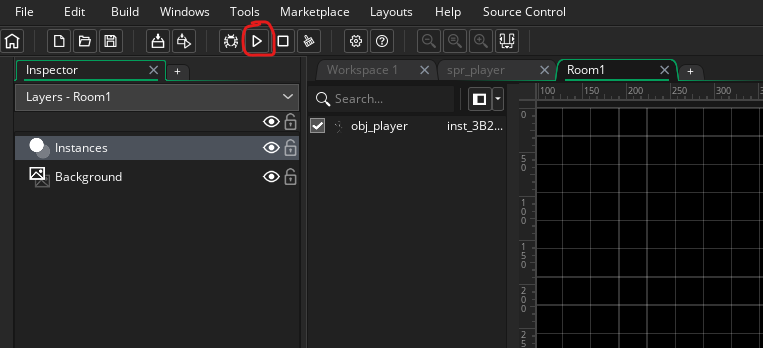
The Play button
You can also press F5 as a shortcut to run it. Once you’ve pressed that button, the game should compile for a bit and then launch! At least, if there are no errors.
You should see your little instance moving horizontally along the screen, and once they hit the edge, they should start moving in the opposite direction.
Pretty cool!
Changing behaviour
Let’s do a quick edit and change the behaviour of your instance a little bit.
You can stop your game by either closing the window, or pressing the little Stop button directly next to the Play button you just used to run the game.
Let’s go back to our object by double clicking on the obj_player object asset in our Asset Browser on the right.
The Step Event should still be open in the Code Editor window. If it’s not, then double click on Step in the Events window.
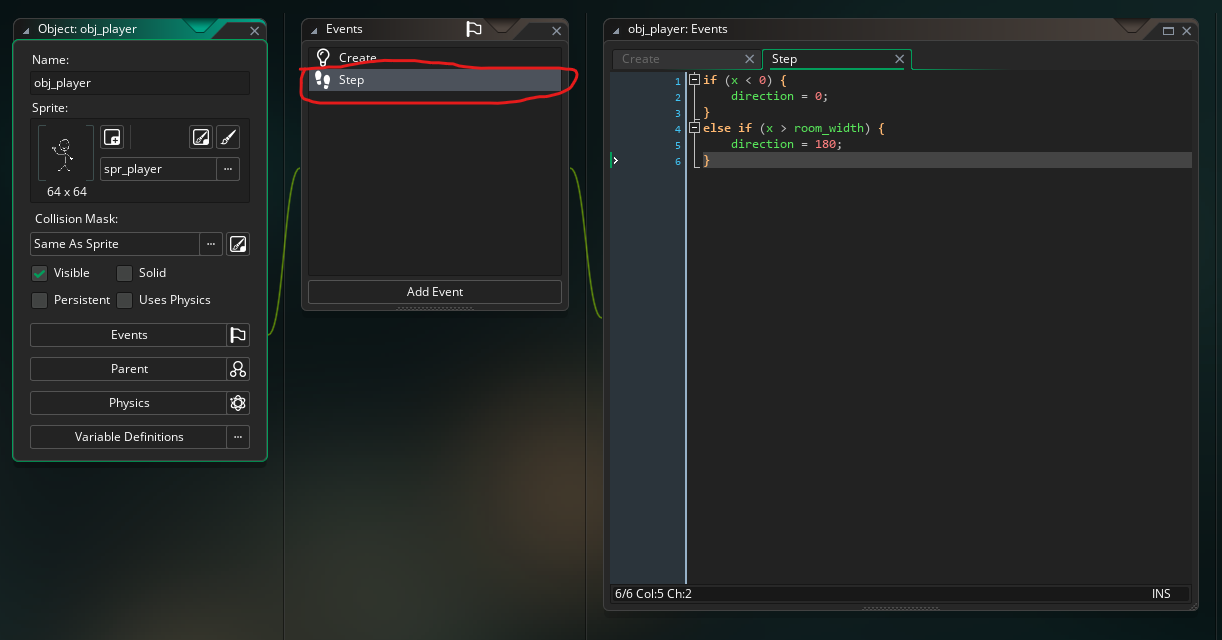
Open the Step Event
Now, we’re going to make a small change so that the instance moves vertically instead of horizontally.
Our code should currently look like this:
if (x < 0) {
	direction = 0;
}
else if (x > room_width) {
	direction = 180;
}
You can see we are using the x variable, and we are setting direction to either 0 or 180.
What we need to do is swap the x variable for the y variable, so that we are checking the vertical position of the instance, we want direction to be set to either 90 or 270 (which is up and down in GM orientation), and we want to check against room_height, not the room_width.
So making all those changes, the edited code should look like this:
if (y < 0) {
	direction = 270;
}
else if (y > room_height) {
	direction = 90;
}
This will make it so that if the vertical position is less than 0 (the top of the room), the direction gets set to “down” (270 degrees), and if the vertical position is greater than the room height (the bottom of the room) then direction gets set to “up” (90 degrees).
This can feel a little strange at first: in GM, y gets larger as you move down the room, but direction 90 points up. So when y is greater than room_height, the instance has moved down off the bottom of the room and needs to start moving up.
We also need to make a change in the Create Event, as we need the instance to start moving up and down, instead of left and right like it currently does. That means we need to change what direction the instance is given initially in the Create Event. We’ll also adjust the speed a bit so it moves faster while we’re there.
So double click on the Create on the Events window (or click on the Create tab in the Code Editor window).
You should see this code:
speed = 1;
direction = 0;
We want to set direction to 90, so the instance starts off moving down. We’ll also bump speed up to 3. Change the code to this:
speed = 3;
direction = 90;
And that’s it. Click the Play button again (or press F5) and you should see the instance moves up and down now, and three times as fast as it did before.
Excellent! You’ve now run through all the basic steps you need to know in order to make a proper game. Our next series of lessons will be on coding principles and fundamentals, which will help you build out the fundamental knowledge and skills you need to learn how to program effectively!