Lesson 5
Functions
Learn how functions package reusable behaviour, accept arguments, and return values your code can use.
The function of functions
A function is essentially a named action.
It’s a way to “automatically copy and paste” chunks of code, so you can use the chunk repeatedly without manually copy and pasting it or having to worry about typing it all up again which might introduce bugs accidentally.
It also means that you can edit a single place (the function declaration), and that edit will be reflected in all the different places you might have used that function (if you were copying and pasting the code instead, you’d have to track down all the places you did so and edit each code chunk one by one).
GM comes with a ton of built-in functions, it’s part of what makes using a game engine useful. So a lot of the time you want to interact with something in GM, you’ll be using a built-in GM function for it.
It’s not necessary to learn every built-in function by heart, after all, that’s what the manual is for, but it is important to learn how to use functions overall.
When you run a function, it’s called “calling” the function.
Let’s see what calling a built-in GM function looks like:
show_debug_message("Hello");show_debug_message is the name of the function. This particular function will print something to the output console.
After the name, we have our old friend the parenthesis (. This is telling the computer “ok, I’m going to insert an argument now”.
What is an argument?
An argument is simply a piece of data you are handing to the function.
When you (or the makers of GM) create a function, you decide on the arguments it will take (if any) and what data needs to be given to those arguments.
In the case of show_debug_message it usually takes a string (but can be given other values as well), which we provide as "Hello". If there are multiple arguments, they will all be separated via comma: camera_set_view_pos(100, 200);.
Then we finish with the closing parenthesis ), which is saying “Ok, we’ve finished with any arguments we want to put in, lets run the function now”. At this point, the code that the function holds will be run.
You might be wondering how you are supposed to know what arguments a built-in function in GM takes? This is where the manual comes in handy.
You can middle click on any function name (or press F1 when the text caret is in the function name), and the manual will be opened at that function’s entry. There you will find all the information you need to use a function, including what types of arguments it needs.
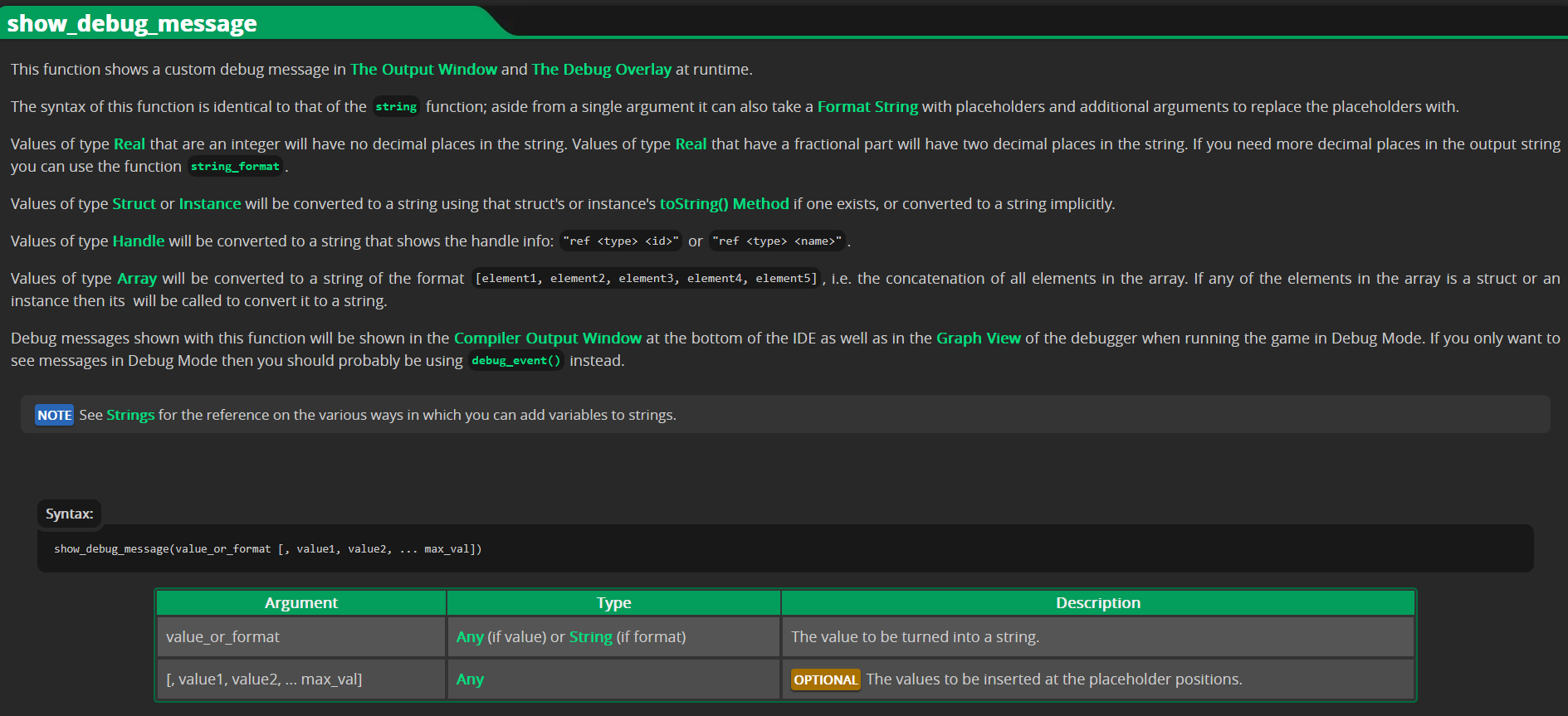
show_debug_message() manual entryYou can see the full description of the function at the top, then the syntax (how to call it) and then the arguments in the table below that. We can see that it can take multiple arguments, and the type is Any and a short description of the argument.
Middle clicking on a custom function won’t take you to a manual entry, instead GM will try to open up the part of your code where you’ve declared the function.
Feather (if it is enabled) will also show the arguments a function takes. If you hover your mouse over the function name for a moment, the Feather info box should pop up.
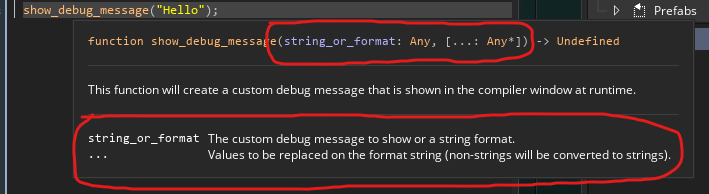
show_debug_message()I’ve circled the areas that show the arguments that the function wants.
show_debug_message() is a little special in this regard, as it’s specifically designed to be able to print almost anything you throw at it, so while you’ll most often be supplying a string, you can supply other things there and it will try to convert them into a string to the best of its ability.
I think Feather’s shorthand version of the arguments is more confusing to work with while you are learning, so I recommend starting off with the manual version.
Unlike in conditionals, parentheses after the function name are absolutely necessary for the function to run. If you don’t include () when you call the function, it will either do nothing or crash (depending on exactly what you are doing).
In addition to that, there are required arguments and optional arguments. The names are pretty self-explanatory. If an argument is required, you must provide something that fits the argument type. If it’s optional, you can decide whether you want to include it.
Not including a required argument will generally stop the program from compiling, with a message telling you that you haven’t provided a required function.
So the mental model you need to follow when calling functions (whether built-in or a function you’ve created) is function name > parentheses > with argument/s inside (if required).
Creating functions
GameMaker has a few different ways of declaring functions (similar to declaring a variable). For this first introduction to coding, we’ll focus on the most obvious one: creating a global function in a script.
As we learned from calling the function, they have a name, and a possible set of arguments.
Let’s look at how we might build our own simple function, which we can then call when desired.
function TakeDamage(_amount) {
    hp = hp - _amount;
}
This code would go inside a script asset (we’ll touch on scripts in the next course when we actually build a small game).
We start a function declaration by the keyword function. Then we provide the name we have decided on, TakeDamage in this case, and then we add the parentheses and the names of any arguments we want, in this case _amount.
In function declarations, we treat arguments as actual variables, which we can then use in the function body. You can see it being used when we subtract the _amount argument variable from hp.
Now, if we wanted to later on call that function, we’d do it like this:
TakeDamage(1);You can see that we don’t use the name of the argument there, instead we provide the value. You can imagine that under the hood we are taking the named argument variable we created in function declaration, _amount, and we are setting it to the value we provide when we call the function later on: _amount = 1. If we provided 2 as the argument, it would be _amount = 2.
This is all “under the hood”, as I said, so we don’t actually need to directly assign the named argument variable to the provided argument value, it happens automatically.
Altogether, that means the code that would execute when we call that function is this:
hp = hp - 1;When functions talk back
The final part of the function puzzle are return values. Some functions “hand stuff back” to you, which you need to “catch” in a variable. In other words, it’s how a function can gives you access to the data it has manipulated internally.
In order to catch a return value, you simply set a variable equal to the function call:
draw_alpha = draw_get_alpha();In this specific example, draw_get_alpha() is a built-in GM function that returns the alpha value that the draw_* functions have been set to (it will be a real number between 0 and 1). We catch that returned value in the draw_alpha variable, and now we have that value stored.
We can even return values in functions we have built ourselves by using the special keyword return:
function Add(_num1, _num2) {
    return _num1 + _num2;
}
This function obviously performs addition, adding _num1 and _num2 together, and then returning the resulting value. Calling the function would look like this:
num = Add(1, 2);num ends up holding the value 3.
There are many built-in functions that return values, and you’ll be constantly working with them any time you build a game, so it’s a good idea to make sure you understand how it works.
In order to find out if a function returns a value or not, we can go back to our trusty sidekick: the manual. Middle click the function name (or press F1 with the caret in the function name) to go to the function entry in the manual.
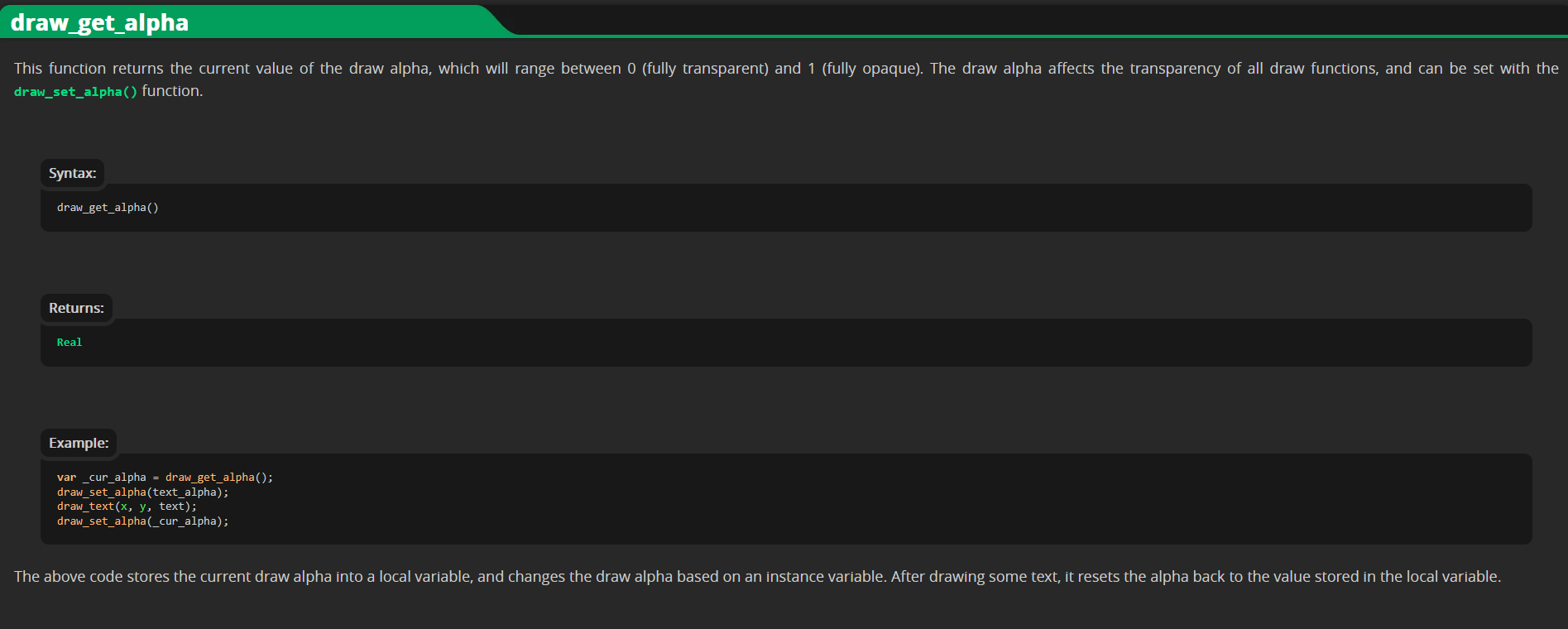
draw_get_alpha() manual entryYou can see the description, then the syntax and then the Returns box. If a function returns a value, it will have this box on the manual page, and it will tell you what type of value it returns as well (in this case, a real number).
We can also see whether a function returns something by using Feather (if it’s enabled). Hold your mouse over the function name for a moment to let the Feather box popup, and you can see some information about the function.
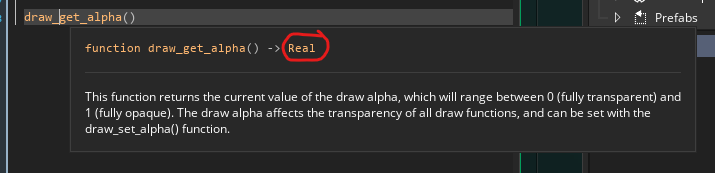
draw_get_alpha()I’ve circled the section that says what the function will return (it will always be after the little -> indicator). Again, we can see it returns a real value (plus a little description of the function below that).
If a function doesn’t have a specific return value associated with it, it will automatically return the keyword undefined, so Feather will show -> Undefined in those cases.
Try it: Find the argument
In show_debug_message("Hello");, which part is the argument being given to the function?
Function practice
Two tiny checks for calling functions and using returned values.
Task: Call the function
Write one line that calls TakeDamage with 3 as the amount.
Task: Catch the return value
Write one line that stores the result of Add(1, 2) in num.