Lesson 4
Your First Object
Create your first object in GameMaker.
An Object
So far, we’ve learnt what GameMaker is, and we have an understanding of what objects and events are. Lets create your first object now.
Right click on the Assets Panel (the section that has your Room1 room), and select Create > Object. The Object window that you saw in the previous lesson should pop up.
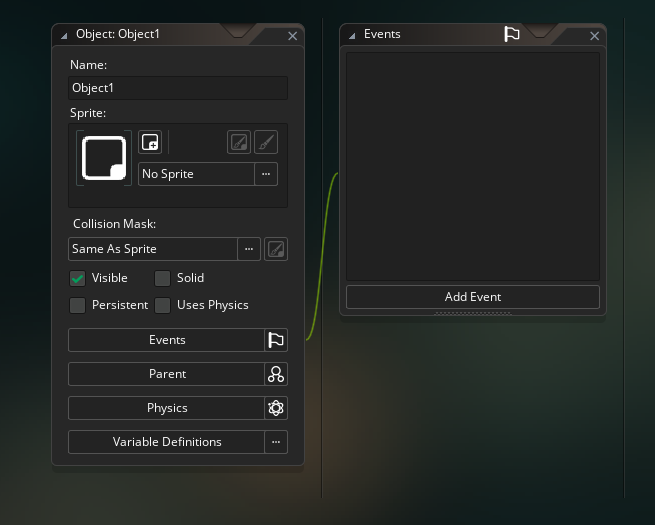
The Object window of your first object
Lets add a Step Event.
Left click on Add Event at the bottom of the Events window. Select Step > Step.
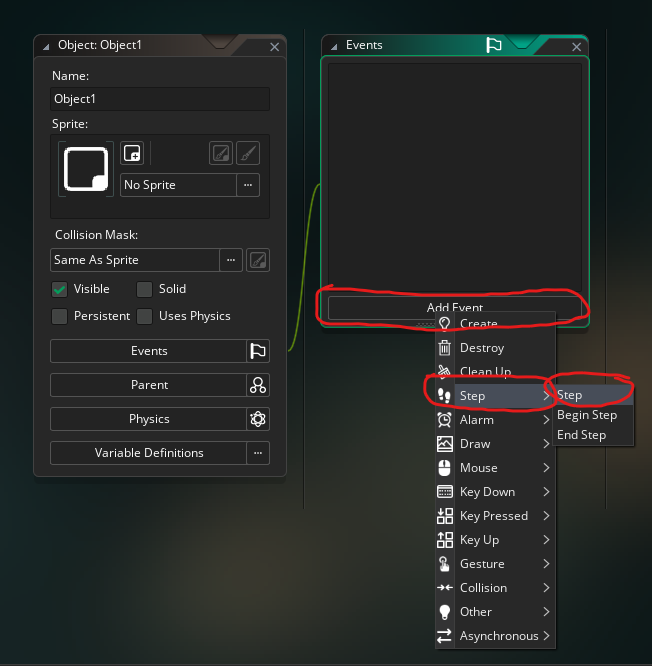
The Object window of your first object
A new window should
Many beginners conflate objects and instances. An object is a blueprint that allows you to print instances. Objects never exist in-game, only instances. Each instance printed from the object will inherit the events and code from that object, but exists as its own independent thing once it is created.
Think of it like a house: many houses can be built from a single house blueprint, but each house will have different things happen over its lifetime (a window smashed, a wall cracked, a new paint job) which has no effect on the other houses built from the blueprint.
You can create an object by right clicking on the Asset Browser, hovering the Create item and then selecting Object, or clicking the little + icon and selecting Object (or the hotkey Alt+O if you’re impatient).
Once you have done so, you’ll be greeted with the Object window, with the Events window open. There are many different things you can do here, but for now, we’ll focus on Events.
Events - Where behaviour lives
Events are how you organise your code. The three main events that you will interact with are the Create Event, the Step Event and the Draw Event.
- Create Event
- The Create Event fires exactly once, when an instance is first created. You can use it to run setup code for the instance. You cannot put code here that needs to constantly run over the lifetime of the instance, so something like
left_key = keyboard_check(vk_left);does not belong in the Create Event, as you want that kind of code to constantly be checked. Instead that code would need to go in the Step Event.
- The Create Event fires exactly once, when an instance is first created. You can use it to run setup code for the instance. You cannot put code here that needs to constantly run over the lifetime of the instance, so something like
- Step Event
- The Step Event fires once per frame for the lifetime of the instance. This is the place where you want to put any dynamic code, like the
keyboard_check()I mentioned above, or anyifstatements that need answering across the lifetime of the instance.
- The Step Event fires once per frame for the lifetime of the instance. This is the place where you want to put any dynamic code, like the
- Draw Event
- The Draw Event is where you place any custom draw code you have. Don’t try to draw stuff in the Step Event or the Create Event. Almost all of your drawing code has to go here to work. If you do not add a Draw Event then GM will automatically draw the sprite assigned to the object.
There are many other events that GM gives you access to, but these three alone are more than enough to make a simple game with.
The simplest rule of thumb is:
- If you want something to happen once when a thing is created, often as a initial setup, then put it in the Create Event.
- If you need something to repeatedly happen over time then put it in the Step Event.
- If you need to draw something put it in the Draw Event.