Lesson 2
Creating a project
Create your first GameMaker project.
The Welcome Screen
When you first open GameMaker, you’ll likely be greeted with the welcome screen.
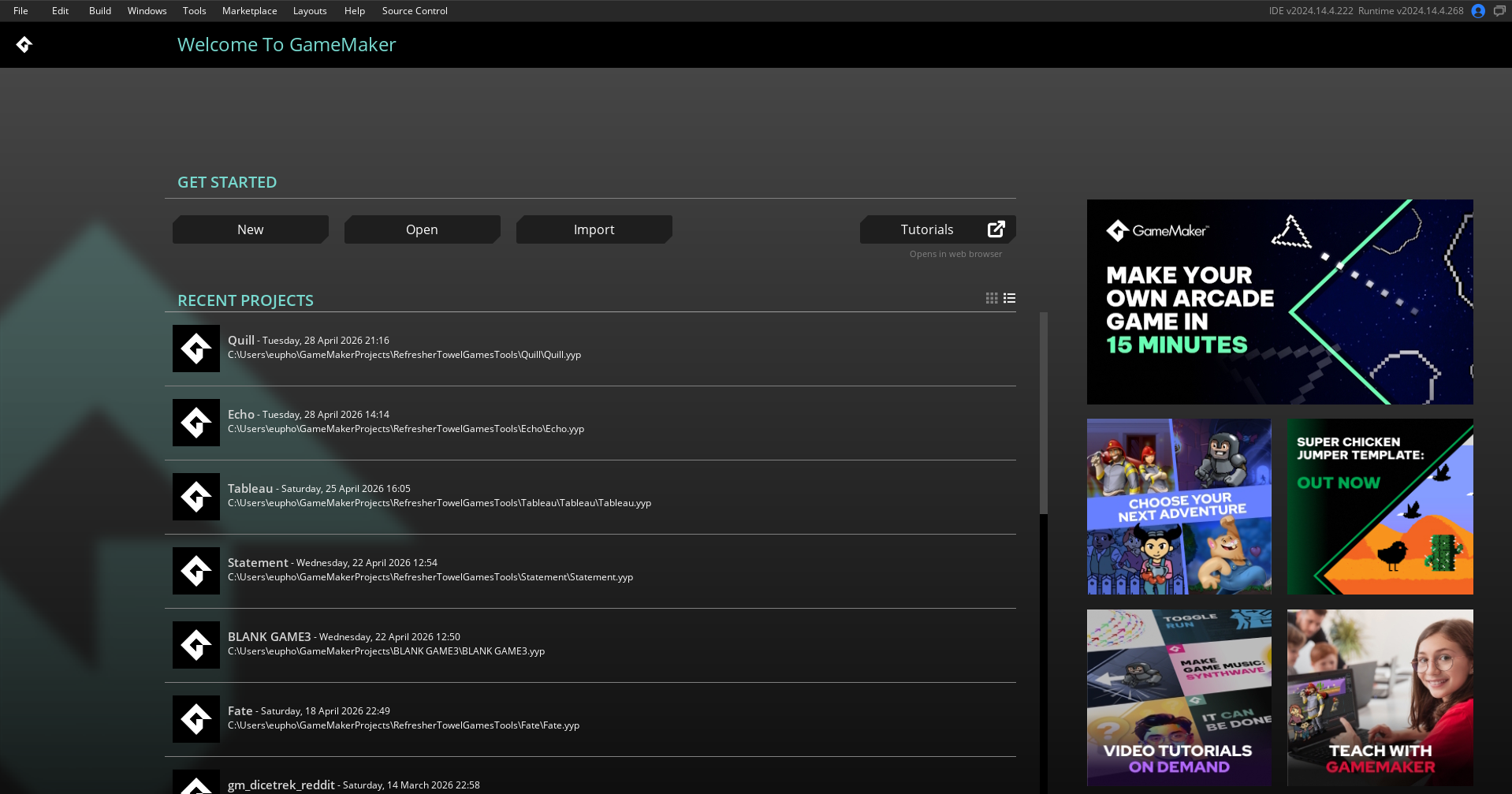
This is where you can create a new GM project. Lets create one. Click the New button underneath the GET STARTED text.
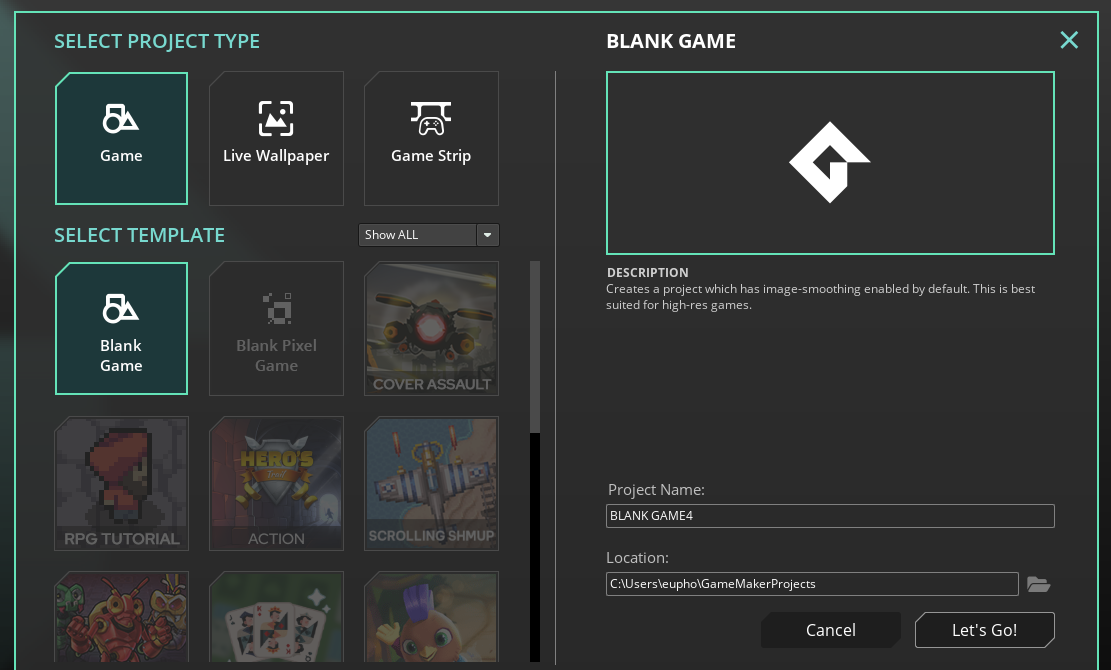
Here, you can see what type of project you might want to make, a bunch of different project templates, and the name and save path of your project.
For our purposes, we’ll want to select a Game project type, and a Blank Game as the template.
Then on the right hand side, we’ll want to set our Project Name to some like “My first project”, and make sure the Location is somewhere sensible, then click Let’s Go!.
Because game engines are complex pieces of software, constantly making small changes across a wide swathe of files, it’s very important to save your project to the right place!
Do not save your project onto removable media (whether it be a thumb drive, a disconnectable hard-drive, etc).
Do not save your project into the cloud (this means no OneDrive folders, no Apple syncing folders, etc).
Do not save your project into Documents on Windows. This is essentially a repeat of the point above, but it’s such a common failure mode that it needs to be highlighted.
You need to save your project to a stable, non-cloud enabled folder on your internal hard-drive. If your location is something like C:\Users\*\GameMakerProjects that is a perfectly fine place to save.
Or you can create your own folder on C: (or any other partitions you have) if you wish to.
If you are given the option between GML Code or GML Visual, pick GML Code. This tutorial series will be focused specifically on code. While visual may seem easier at first, there are a couple of reasons I do not recommend it:
- It takes longer to do anything in Visual, which compounds over large projects. An extra 30 seconds per action, over the course of months, can lead to dramatic wastage of time.
- Visual offers less flexibility compared to code. You’ll often end up having to dive into code at a certain level of complexity, regardless of whether you wanted to stay purely in Visual or not.
- There are a vast amount more resources online aimed at code compared to Visual.
- Most people answering questions online are code-only focused.
- You will still have to “learn to code” using Visual, you’ll just be learning an abstracted, less useful, but no less difficult version of coding.
After this, you should be greeted with the main project space.
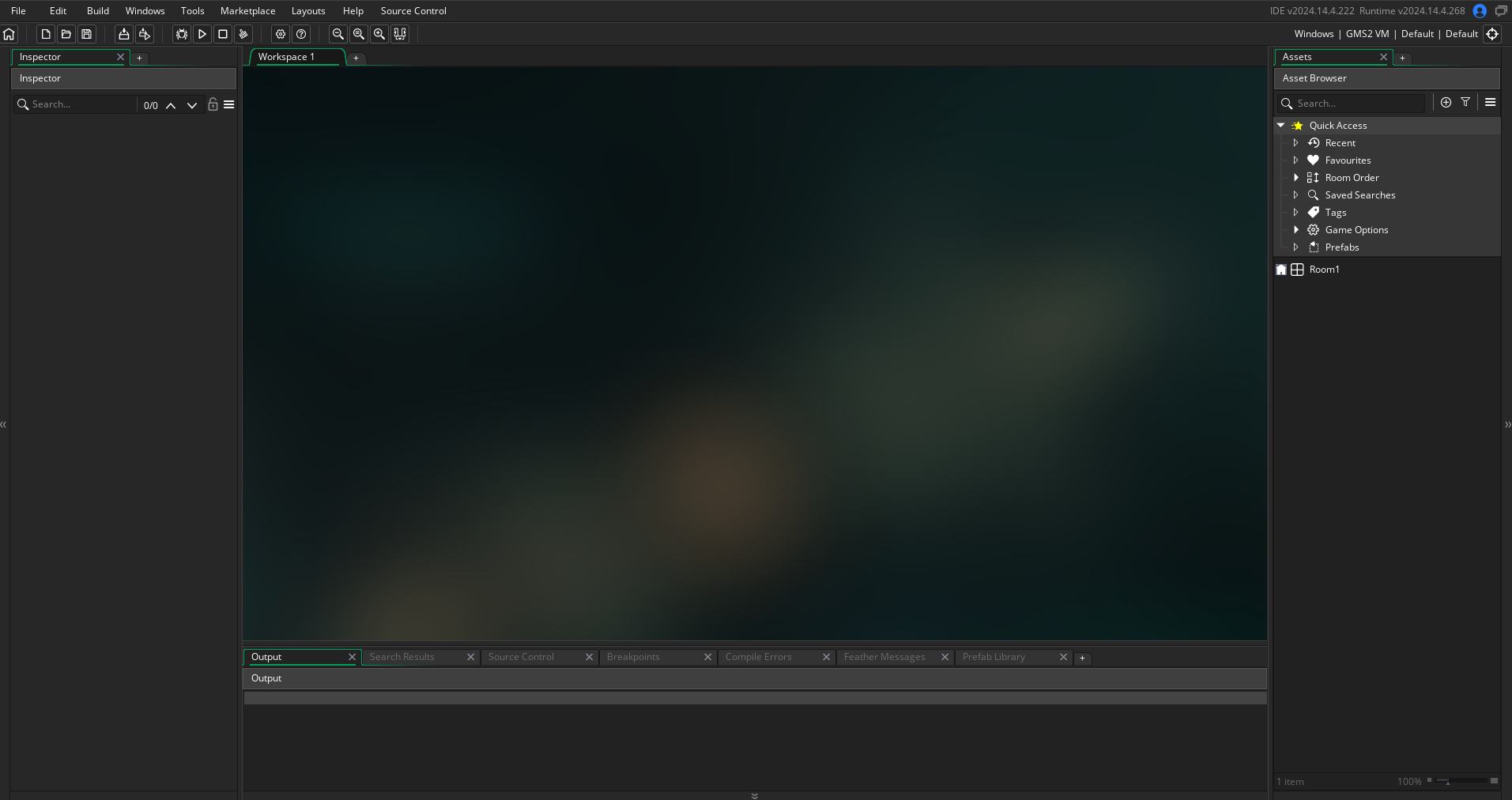
This is where all the action happens. Over the next few lessons, we’ll create an object, assign it a sprite and some behaviour, place it in a room and run our very first game!